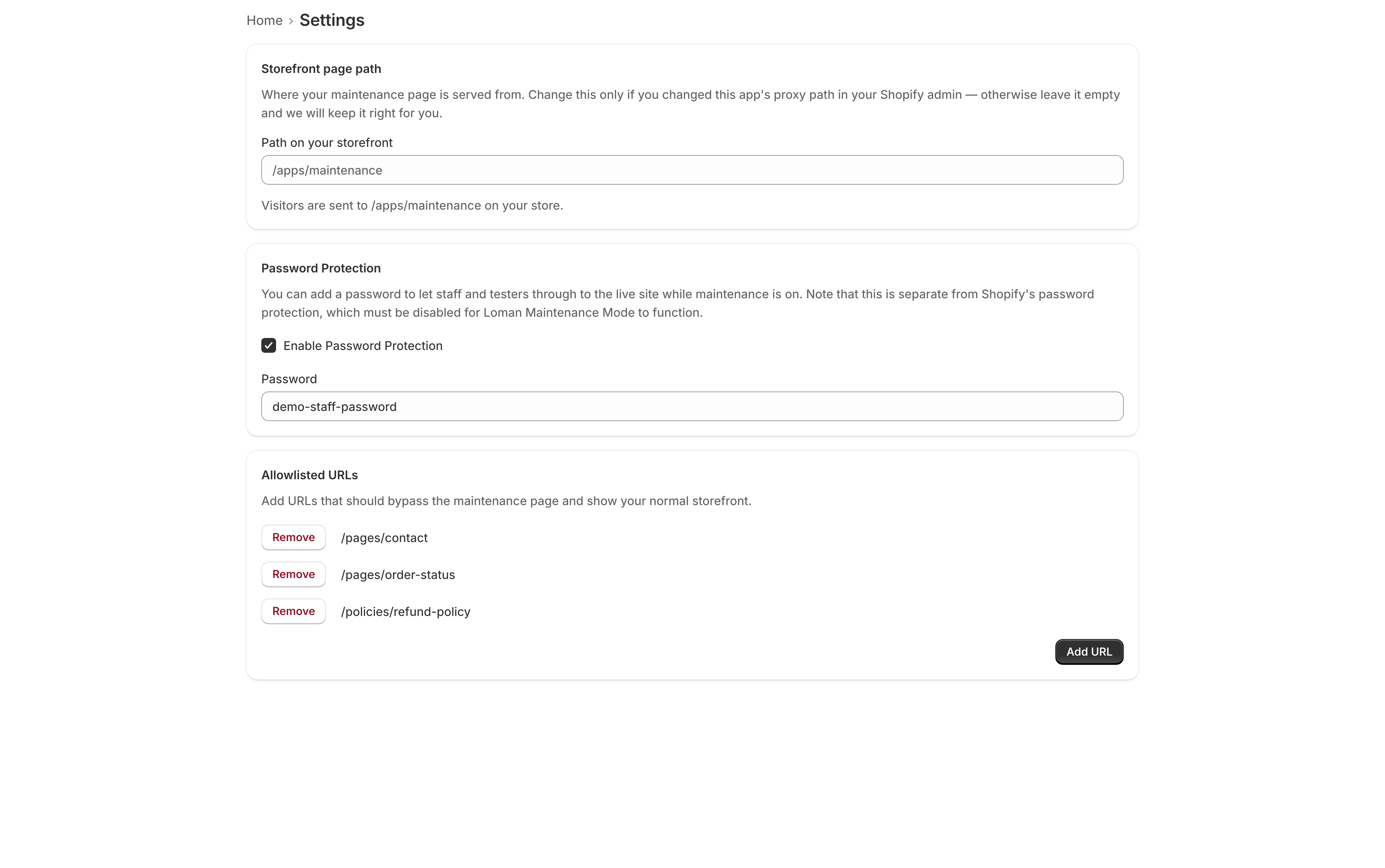
Password protection lets specific people past your maintenance page and into the real storefront, while everyone else still sees the page. It is how you give a partner, a photographer, a wholesale buyer, or your own team a look at the store before it opens.
Set a password
- Open Loman Maintenance Mode in your Shopify admin.
- Go to the Settings tab.
- Under Password Protection, tick Enable Password Protection.
- Type the password you want to hand out into the Password field.
- Click Save in the bar that appears at the top of the page.
The password is shared — one password for the whole store, not one per person. Change it whenever you want to revoke access; anyone still using the old one is locked back out.
The field shows the password as you typed it rather than hiding it, so if you forget what you gave out, look it up here; there is no need to set a new one.
How visitors use it
Your maintenance page shows a small lock icon or a password link, depending on the template and how you have styled it. A visitor clicks it, types the password, and is sent through to your storefront.
Access sticks for that visitor’s browsing session, so they will not be asked again on every page.
If the password does not let anyone through
- Check the app is the only thing gating the store. If Shopify’s own password protection is also on, entering the app’s password will still leave the visitor on Shopify’s page.
- Try a private window. A browser that already has a session can mask whether the password works for someone arriving fresh.
- Re-save the password. If it was set and then the checkbox was unticked, the field is disabled and no password is in force.