Open Templates in the app and click Customize on either design. The editor puts your settings on one side and a live preview on the other — the preview updates as you type, so you can see the page the way a visitor will.
The settings sidebar sits at rest as a narrow column of icons. Click one to open that category, and Back to return to the list.
The two templates
| Notice | Countdown | |
|---|---|---|
| Heading and message | ● | ● |
| Logo | ● | ● |
| Colors and alignment | ● | ● |
| Staff login link text | ● | ● |
| Expected return | Free text | — |
| Live timer | — | ● |
They differ in exactly one thing: how you say when you will be back.
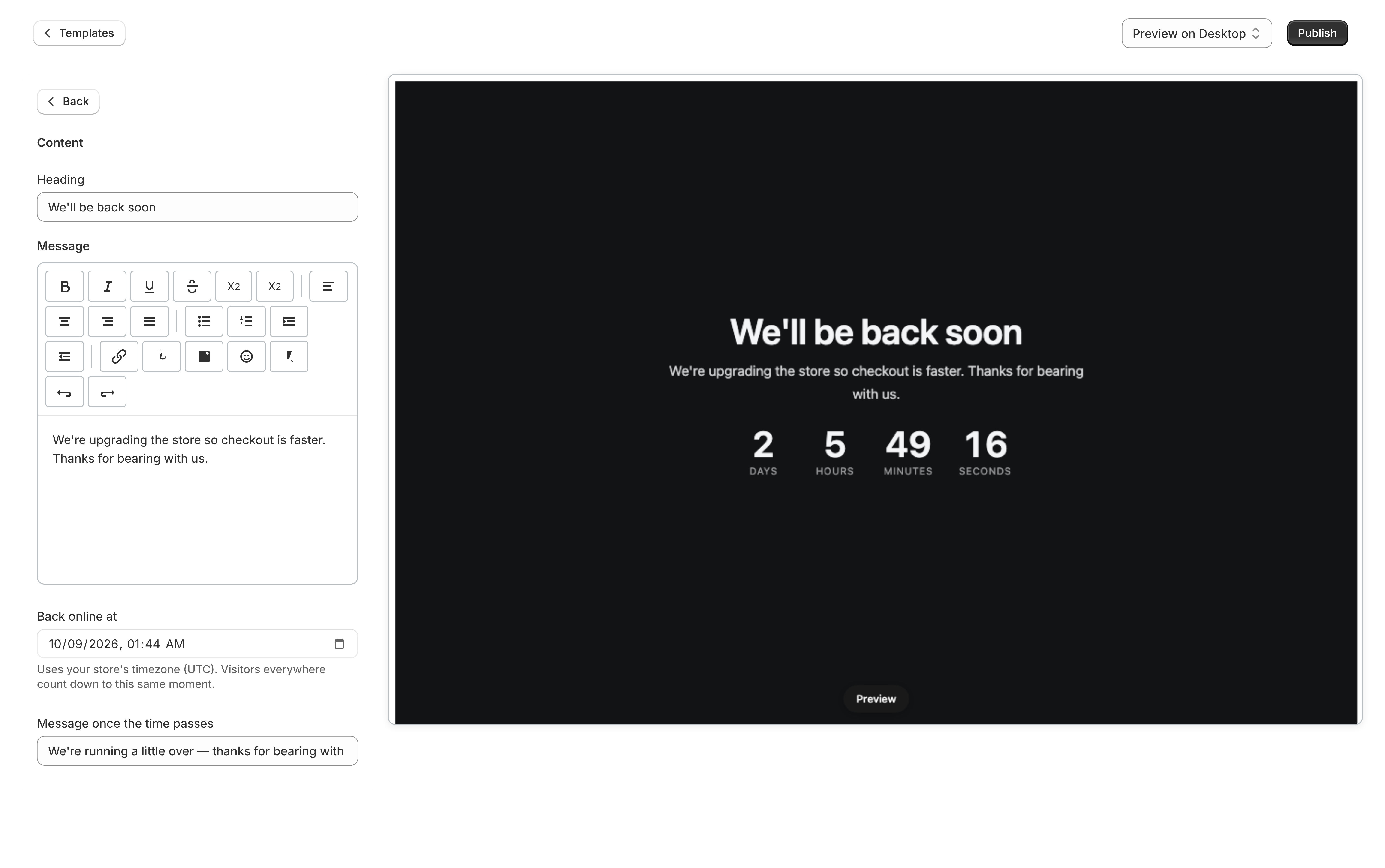
Notice takes free text, so you can be as vague as you like — “this afternoon” is often kinder than a time you might miss. Countdown takes a real date and time and runs a live timer to it. Pick Notice when you genuinely do not know; pick Countdown when you can commit. See Countdown timer.
Content
| Setting | What it does |
|---|---|
| Heading | The large line at the top. Defaults to “We’ll be back soon” |
| Message | The paragraph below it. Rich text, so you can bold a word or add a link |
| Expected return (Notice) | Free text — “this afternoon”, “Monday morning”, “by 5pm” |
| Expected return label (Notice) | The words in front of it. Defaults to “Expected back:” |
| Back online at (Countdown) | The date and time the timer counts down to |
| Message once the time passes (Countdown) | Shown instead of the timer if you overrun |
The defaults are deliberately generic, which means every store that installs this app and changes nothing shows the same two sentences. Changing the heading and message is the minimum worth doing.
Branding
| Setting | What it does |
|---|---|
| Show logo | Off by default. Tick it to show the image below |
| Logo | Upload an image. A transparent PNG or an SVG sits best on a colored background |
| Logo width | 60–320px, in steps of 10. Defaults to 140 |
A logo is the cheapest thing you can do to make the page read as your store closed on purpose rather than something is broken. It is worth the two minutes.
Appearance
| Setting | Controls | Default |
|---|---|---|
| Background | The page behind everything | #111315 — near-black |
| Text | Heading and message | #f4f5f6 — near-white |
| Accent | The staff login link, and the countdown cards | #4f8cff — blue |
| Accent text | Text sitting on the accent color | #0b0d0f |
| Alignment | Centered or left | Centered |
The defaults are a dark page on purpose — it reads as deliberate, and it does not flash white at someone who opened your store on a phone at night. If you switch to a light background, change Text at the same time or the page will be white on white.
Staff access
One setting: Staff login link text, which defaults to “Staff login”.
It only appears on the page once a password is actually set, over in Settings — see Staff password. Until then the setting is there and the link is not.
Change the wording if the people you are sending are not staff. “Developer access” or “Agency login” tells the right person to click and everyone else not to.
SEO
Page title is what browsers show in the tab and what a search engine reads. It defaults to “We will be back soon”.
Worth setting to something with your store’s name in it, if only so a tab left open for three hours is still identifiable.
Save and Publish
Two buttons, two jobs:
- Save stores your changes to that template. It does not change what visitors see.
- Publish makes that template the one your storefront shows.
You can save as often as you like while you work. Publishing is a separate decision, and you only need it once per template — after that, saving an already-published template updates the live page.
The branding line
On the Free plan your page carries a small “Powered by Loman Maintenance Mode” line just below your message. There is no editor setting for it — removing it is what the Standard plan buys, and it is the only difference between the two. See Plans and features.