A fresh install does nothing to your storefront until you set it up. The Home tab carries a Getting started checklist with three steps:
- Customize your maintenance page
- Publish your maintenance page
- Enable app embed in theme
Both designs are added for you at install, so there is nothing to pick before you start.
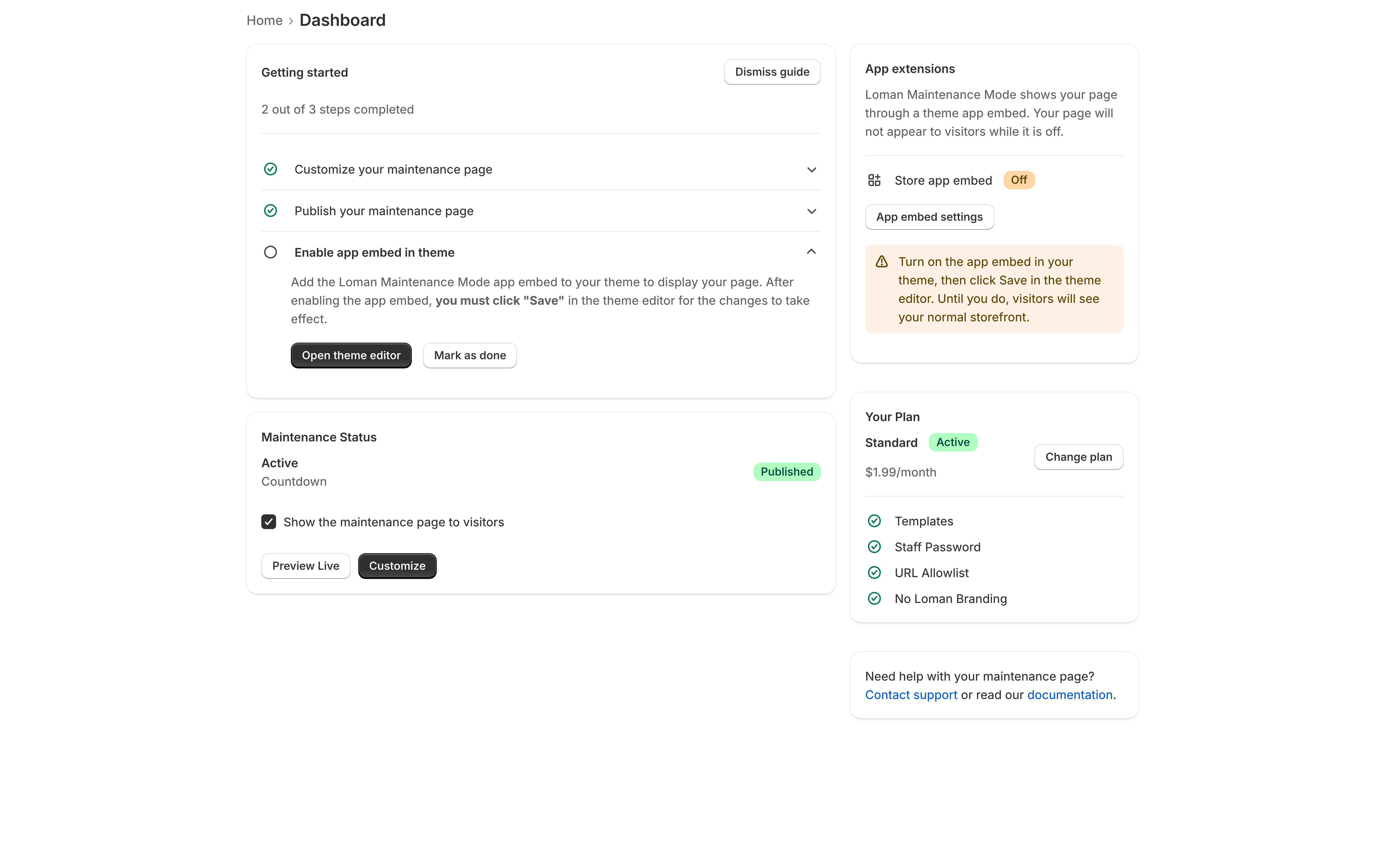
Finishing the checklist closes your store. The Show the maintenance page to visitors checkbox in the Maintenance Status card just below it starts ticked, so once a template is published and the app embed is saved, shoppers are sent to your maintenance page. If you are setting up ahead of time, untick that box before you start — see Before you actually need it, below.
The app embed step and the checkbox are the two that catch people out, in opposite directions — the embed is easy to leave half-done, and the checkbox is easy to forget is already on.
1. Customize a template
Go to the Templates tab. You are given both designs at install:
- Notice — a heading, a message, and an optional free-text line saying when you expect to be back.
- Countdown — the same, with a live timer counting down to a date and time you set.
Click Customize on the one you want. The editor opens with a live preview beside the settings, so you can see the page change as you type. See The template editor.
At minimum, change the Heading and Message — the defaults are deliberately generic and every store using this app starts with the same two sentences.
Click Save when you are done.
2. Publish it
Saving stores your changes. Publishing is what selects that template as the one visitors see.
In the editor, or from the Templates list, click Publish. The Home tab then names it as your published template.
3. Turn on the theme app embed
This is the step that connects the app to your storefront, and it happens in Shopify’s theme editor rather than in the app.
From the Getting started checklist, open Enable app embed in theme and click Open theme editor. Toggle Loman Maintenance Mode on, then click Save.
Full walkthrough, including how to get there without the checklist: Enabling the app embed.
4. Check the page is switched on
On the Home tab, under Maintenance Status, Show the maintenance page to visitors is ticked from install, so once steps 2 and 3 are done your store is already closed. If you unticked it to set up in advance, tick it when you are ready to close.
Either way it takes effect immediately — no save button, no delay. Unticking it is how you reopen the store, and it is the switch you will use most. See Showing and hiding your page.
Check it worked
Open your storefront in a private or incognito window. You should land on your maintenance page rather than your normal home page.
If you still see your storefront, the answer is nearly always Shopify’s own password setting or an unsaved theme editor — work through My maintenance page isn’t showing.
If you unticked the checkbox to set up in advance, your storefront loading as normal is the point. Preview Live, on the Home tab, shows you the page without closing the store.
Before you actually need it
The useful thing about this app is that steps 1 to 3 can be done in advance, with one change of order: untick Show the maintenance page to visitors first. It starts ticked, so without that, whichever of publishing and saving the embed you do second closes the store there and then. With it unticked, set up your page, publish it, and save the embed, and your storefront carries on as normal.
Then, when the moment comes, closing the store is one tick — and reopening it is one more. That is worth ten minutes on a quiet afternoon rather than at 2am mid-migration.
If you would rather not touch the checkbox, leaving the app embed off until you are ready does the same job — but then closing the store is a trip to the theme editor and a Save, rather than one tick.