The minimum age for what you sell is set by law, not by this app, and it can differ from one country, state, or province to the next. The Age thresholds card in Settings is where you set the age your gate asks for in each place you ship to — see Picking the numbers, below, for where to find the right ones.
It has two parts: one number that always applies, and a list of exceptions.
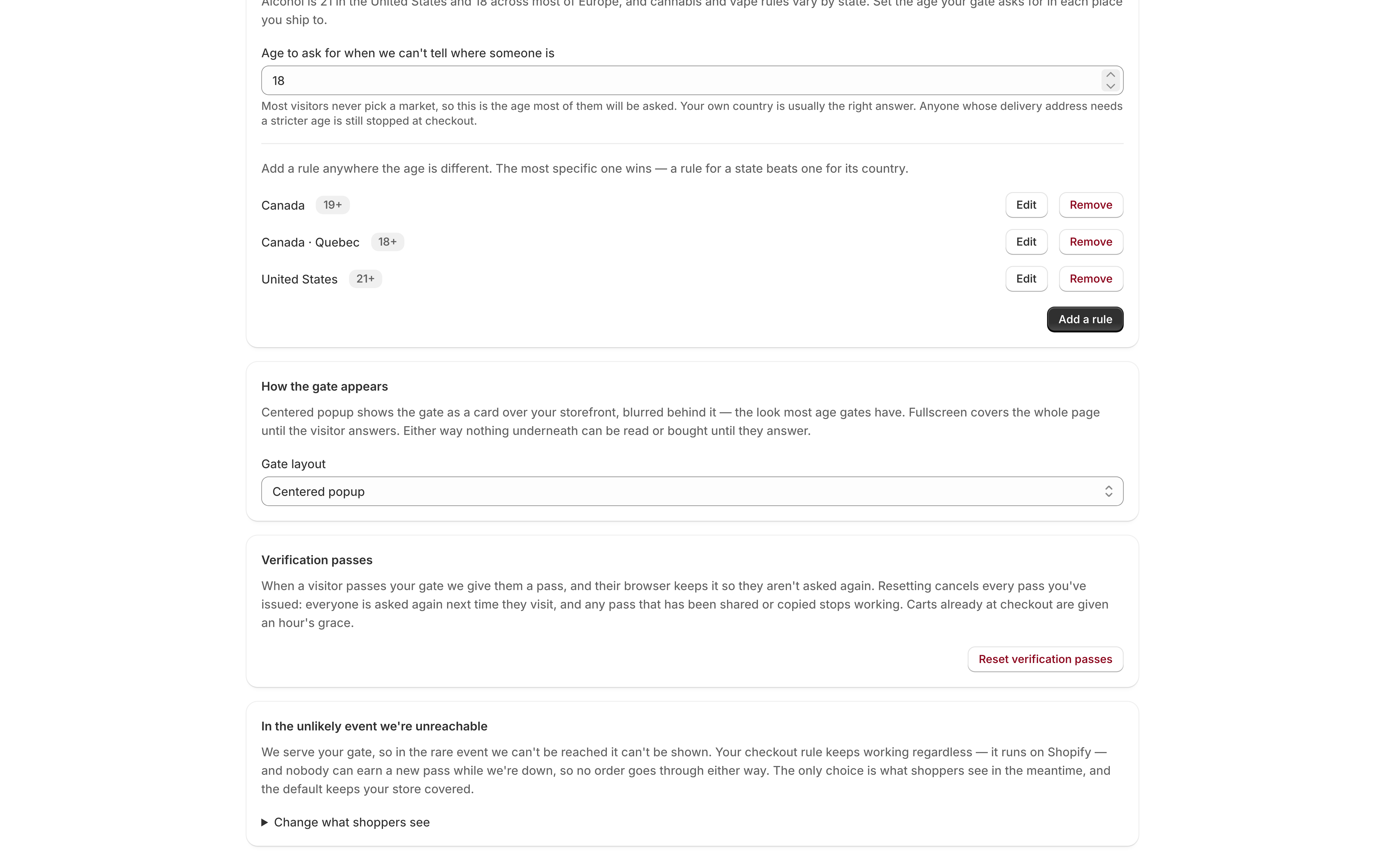
The fallback age
Age to ask for when we can’t tell where someone is.
This is the ordinary case, not an edge case. Shopify’s storefront only knows the market a visitor has selected, and plenty of visitors select nothing — so this number is what most of them will be asked. Your own country is usually the right answer.
It saves through the page’s Save bar, along with everything else on Settings.
A store that has configured nothing at all falls back to 18. That is a floor rather than a recommendation, and the setup checklist asks you to replace it deliberately.
Rules for everywhere else
Below the fallback is the list. Add a rule anywhere the age is different.
- Click Add a rule.
- Choose a Country.
- Optionally add a State or province — the two-letter code, like
TX,CA, orON. Leave it blank to cover the whole country. - Set the Minimum age.
- Click Add rule.
Each rule appears as a row: the place, a badge showing the age, and Edit and Remove beside it. US states and Canadian provinces are shown by name; anywhere else is shown by the code you typed.
Edit changes the age only. To move a rule to a different place, remove it and add another — that is deliberate, because walking one rule onto another would hand you a uniqueness error about a place you were not editing.
The most specific rule wins
A rule for a state beats a rule for its country, which beats your fallback. So:
| Your rules | A visitor in… | Is asked for |
|---|---|---|
| Fallback 21, United States 21, Texas 21 | Texas | 21 |
| Fallback 18, United States 21 | Ohio | 21 |
| Fallback 18, United States 21 | France | 18 |
| Fallback 18 only | anywhere | 18 |
With no rules at all, the list says so: “No rules yet. Every visitor is asked for the age above.”
When the gate asks where the order ships
If — and only if — the visitor’s country has a rule at state or province level, the gate adds a question above the age check: Where will your order ship?
It lists the states you have written rules for, by name, plus “Elsewhere in” that country. The app pre-selects its best guess from the visitor’s connection, and they can change it. Until a choice is made, the submit button stays disabled — “are you 23?” is the wrong question for somebody who turns out to be in a 30 state.
This exists because a storefront cannot see a visitor’s state. Without asking, a gate would have to either ask everyone in the country for the strictest state’s age, or ask the national age and then have checkout block a buyer it had just waved through. Asking is the version that does not waste anybody’s time.
What happens when you change a rule
Raising an age re-asks the people it affects. Visitors who passed under the old, lower number are asked again on their next visit, and get a fresh pass at the new number. Without that they would carry a pass the gate accepts and a checkout that refuses them, with no way to earn a better one.
Lowering an age re-asks nobody. A pass for a higher age already clears a lower one.
Either way, on the Standard plan, the checkout rule is updated to match, so the number your gate asks for and the number Shopify enforces never drift apart.
Picking the numbers
We cannot tell you what to set. What a jurisdiction requires depends on what you sell and where you sell it, it changes, and getting it wrong has consequences that land on you rather than on us — so the numbers in this app are yours to choose. Set the age the law requires in each place you ship to, and check it with the authority that regulates your product there, or with someone qualified to advise you, rather than with a help center.
One requirement can be pointed to, because the regulator publishes it: in the United States, federal law makes it unlawful for any retailer, online stores included, to sell a tobacco product to anyone under 21 — and that covers e-cigarettes and e-liquids. The FDA explains it on its Tobacco 21 page. It is one rule among the ones that may apply to what you sell, so it does not replace checking.
What the app is answerable for is narrower, and worth being precise about: whatever numbers you enter are what the gate asks for — and, on the Standard plan, what checkout enforces — in every place you have written a rule for.