A/B testing serves two different templates to two slices of your traffic and compares how many visitors on each side sign up. It is the difference between believing a change helped and knowing it did.
Setup lives on the Templates page — the A/B Testing card’s Manage tests button. Results appear on Insights.
The idea
- Your control is the template you have published.
- A variant is a second template, served to a share of visitors.
- A visitor is assigned to one side and stays there for as long as they keep coming back.
- A conversion is an email signup, credited to whichever side that visitor saw.
The variant does not need to be published. The running test is what serves it.
Setting up a test
1. Create it
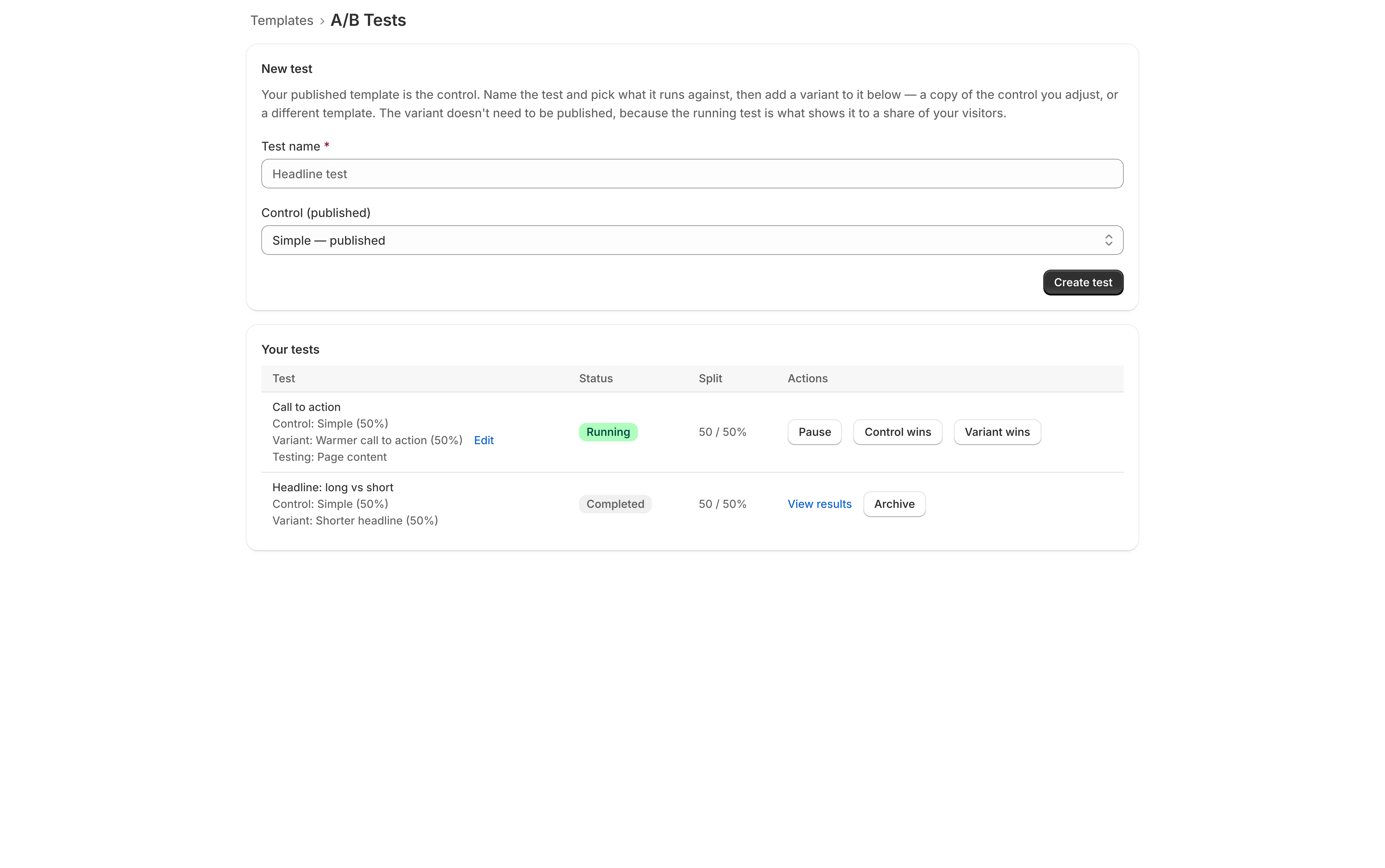
Go to Templates, then click Manage tests in the A/B Testing card. In the New test card:
- Test name — something that says what you are testing, like Headline: benefit vs date.
- Control (published) — your published template. This is what the variant is measured against.
Click Create test. It appears under Your tests as a draft.
2. Add a variant
On the new test’s row, choose what to start from and click Add variant. That is either a copy of the control for you to adjust, or a different template entirely.
Use the Edit link beside the variant to open it in the normal editor.
Change one thing. If you change the headline, the image, and the button color at once and the variant wins, you have learned that some combination of three changes helped — which tells you nothing about what to do next.
Once the variant differs from the control, the row summarizes the difference — Testing: Page content — so you can see at a glance what a test is actually measuring.
You can add up to three variants alongside the control, but start with one. Each extra side needs its own sample and divides the traffic available to reach it.
3. Check the split
The split is shown on the row and defaults to even. Leave it there unless you have a reason not to — an uneven split means the thin side takes proportionally longer to say anything.
4. Start it
Click Start. The button is disabled, with the reason given, if:
- No variant has been added yet.
- Another test is already running. Only one runs at a time — pause or finish it.
- The control is not published. The control has to be the live page. Publish it under Your Templates on the Templates page, then come back.
- A variant is not ready.
Reading the results
The A/B card on Insights shows, per side: views, signups, conversion rate, and a confidence figure.
Confidence
Confidence is the chance the difference you are seeing is real rather than noise. Conventional thresholds:
| Confidence | What to do |
|---|---|
| Below 90% | Keep running. You do not have an answer. |
| 90% | Suggestive. Fine for a low-stakes choice. |
| 95% | The standard bar. Act on it. |
| 99% | Strong. |
If you run more than one variant, the confidence figure accounts for that. Comparing three variants against one control is three chances to see a fluke, so the threshold rises to keep the stated confidence honest across the whole test. A three-arm test labeled 95% is 95% confident overall, not per comparison.
How long it will take
The app estimates how long the thinnest side needs to reach a usable sample, based on your recent traffic. On a quiet pre-launch store that can be weeks — which is worth knowing before you start rather than after.
If the estimate is unworkable, the honest options are: run fewer variants, split traffic more evenly, or test something bigger. A test that cannot conclude is worse than not testing.
Pausing, resuming, finishing
The actions on a test’s row:
| Action | What it does |
|---|---|
| Pause | Stops serving the variant. Visitors go back to the control; data collected so far is kept. |
| Resume | Starts it again, keeping existing assignments so returning visitors stay on the side they saw. Disabled, with the reason, if the test could not start today either. |
| Control wins / Variant wins | Ends the test and publishes the side you picked. |
| View results | Opens the results on Insights. |
| Archive | Takes a finished test off the list, keeping its data. |
| Delete | Removes the test permanently. |
Ending a test is an explicit choice between Control wins and Variant wins — the app does not pick for you, even when the confidence figure is unambiguous. Read the numbers, then declare it.
Declaring a winner publishes it. If the winner is a variant, its settings are folded into your template of that style, which then becomes your live page — so the design you were testing under is the one you keep, carrying the copy that won.
Resume is subject to the same checks as Start, and is disabled with the reason given when one of them fails. The one that catches people out is a control that stopped being published while the test sat paused — publish it again under Your Templates, and Resume comes back. Publishing the control is always allowed, even mid-test; it is your live page by definition. Publishing anything else is refused while a test is live, because it would retire the control the results are measured against.
Getting a usable answer
- Change one thing.
- Test something that could plausibly move the number. Headline, offer, and whether there is a date beat button-color tests, especially at pre-launch traffic levels.
- Let it finish. Peeking at day two and stopping when your favorite is ahead is how you get a wrong answer confidently.
- Do not start a second test mid-flight. Only one runs at a time, and there is a good reason: overlapping tests contaminate each other’s results.
How visitors are assigned
Assignment is decided once per visitor and stored, so someone who returns sees the same side they saw before. This matters for accuracy — a visitor who saw one version and signed up on another would credit the wrong side.
What is not measured
Only email signups count as conversions. There is no other goal to choose, because on a pre-launch page there is no other action to take.