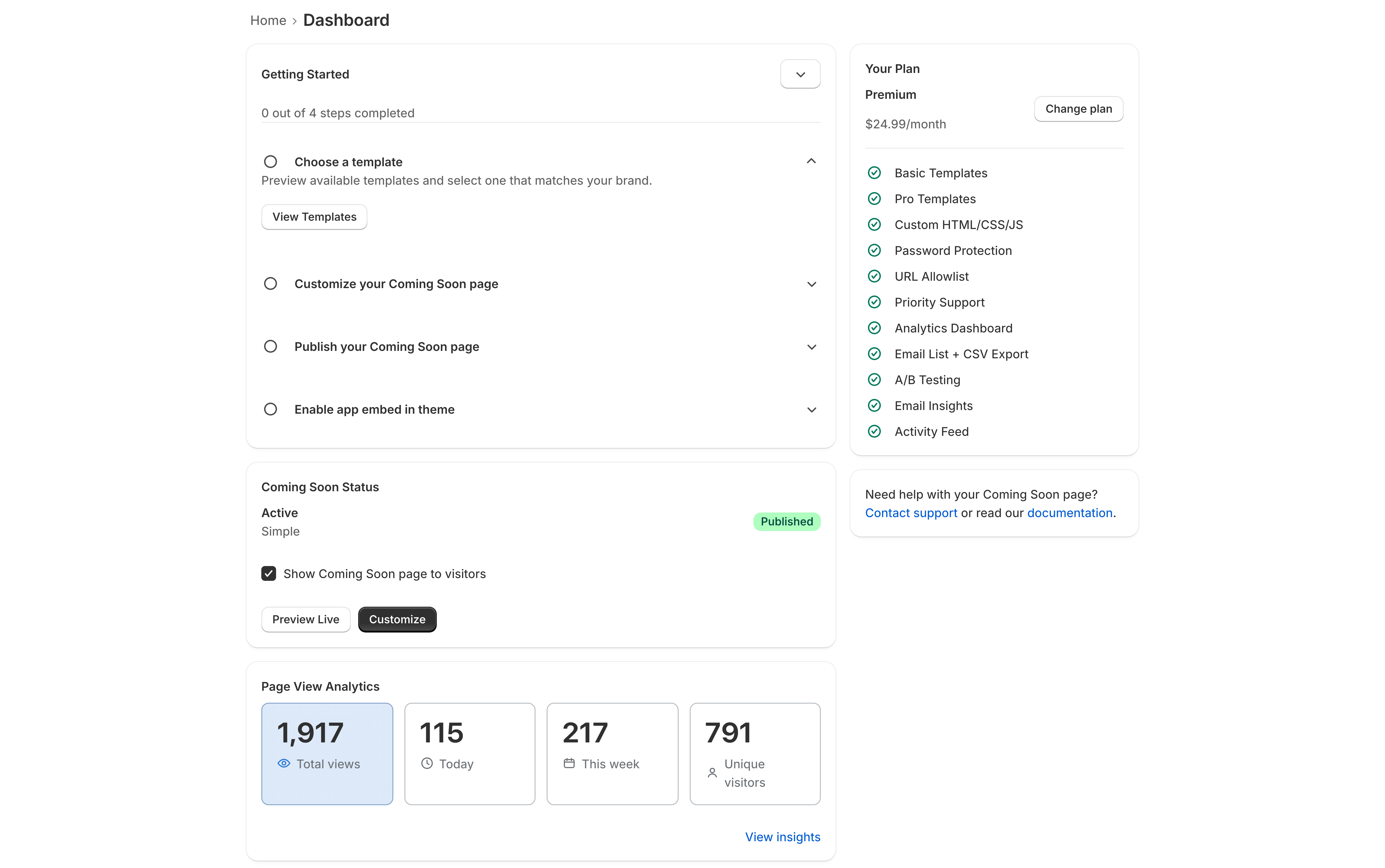
When you first open Coming Soon, the Home tab shows a Getting started checklist with three steps. Working through it in order is the fastest route to a live page, and the checklist tracks which steps are done.
You can dismiss the checklist once you are finished with it.
1. Customize your page
Your store already has two templates in Templates → Your Templates — they are added for you when the app is installed, so there is nothing to set up before you start.
Go to Templates → Your Templates and click Customize on the one you want to use.
The editor is a settings form on the left and a live preview on the right. Changes save automatically. Work through the sections that matter to you — heading, logo, colors, your launch date — and watch the preview update.
See The template editor for how the preview, autosave, and undo work.
Want a different design first?
Go to Templates and scroll to Add More Templates. Click any template to see a larger preview, then Select Template to add it to your store.
There are seven. Two are available on every plan; the other five need Pro or higher. See Choosing a template for what each one is for.
You can add more than one and switch between them later — useful for A/B testing on Premium.
2. Publish it
Publishing marks one template as the one visitors will see. From Templates → Your Templates, click Publish on the template you want live.
Only one template is published at a time. Publishing a second one replaces the first.
Once a template is published, the Home tab shows Active and names it. Your page is now viewable at:
https://your-store.myshopify.com/apps/coming-soon
3. Enable the app embed
Coming Soon shows your page by adding an app embed to your published theme. Until the embed is switched on, the app has no way to intercept visitors and your storefront behaves as normal.
This step is unavoidable and it is the one people miss most often. Shopify requires it, and it lives in the theme editor rather than in the app.
Turn the embed on
- In your Shopify admin, open Coming Soon.
- On the Home tab, find the Getting started checklist and open the Enable app embed in theme step.
- Click Open theme editor. Shopify opens your published theme with the app embed panel already showing.
- Find Coming Soon in the list and switch its toggle on.
- Click Save in the top right of the theme editor.
Getting there without the checklist
If you have dismissed the onboarding checklist, you can reach the same place manually:
- Go to Online Store → Themes.
- On your published theme, click Customize.
- In the left sidebar, click the App embeds icon (a jigsaw puzzle piece).
- Toggle Coming Soon on and click Save.
Checking it worked
Open your storefront in a private or incognito window. You should land on your Coming Soon page rather than your normal home page.
If you still see your storefront, work through My page isn’t showing.
After the three steps
Your page is live. From here, the things most stores do next:
- Show or hide the page — the toggle you will use on launch day
- Password protection — let partners and testers through
- Allowlist URLs — keep specific pages reachable
- Collecting email signups — build a launch list
Requirements
For your page to appear to the public, all of these must be true:
- Shopify’s own password protection is off (how to turn it off)
- You have an active subscription or trial
- A template is published
- The Coming Soon app embed is enabled and saved in your published theme
- Show Coming Soon page to visitors is ticked on the Home tab
If one of those is missing, My page isn’t showing walks through them in order.