Coming Soon has seven templates. Two are on every plan; five need Pro or higher.
They are not skins of one design — each is built around a different thing being the point of the page, so pick by what you most want a visitor to do.
The seven
| Template | Plan | Built around | Choose it when |
|---|---|---|---|
| Simple | Basic | A full-bleed background with centered copy | You want one strong image and the most settings to tune |
| Duo | Basic | A split screen: copy on one side, rotating images on the other | You want first and last name as well as an email |
| Minimal | Pro | Type on a plain or gradient background | Restraint is the brand, and you want the page to load instantly |
| Countdown | Pro | A large, fully styleable timer | A dated launch or drop is the message |
| Split Hero | Pro | A hero image beside content, with a progress bar | You want to show how far along the build is |
| Video Hero | Pro | A looping background video | You have footage that sells the product better than a still |
| Product Showcase | Pro | Up to four product images plus highlights | You are launching one specific product |
What’s distinctive about each
Simple Basic
The most configurable template, and the oldest. A background image or color, your logo, a heading and rich-text body, and optional sections for a countdown, an embedded video, a background slideshow, and a preloader.
It is the only template with a separate mobile background image, which matters when a wide hero crops badly on a phone. It also has the fullest typography controls — font, body color, link color, link hover color, and an optional text shadow for legibility over a busy photo.
Duo Basic
A two-panel layout: your copy on one side, a rotating set of up to three hero images on the other. Colors are set with three values — background, text, accent — which makes it quick to brand.
Duo is the only template whose signup form collects first name and last name as well as an email address. If you plan to send personalized campaigns, that is the reason to pick it.
It can also show a YouTube video behind a play button, rather than inline.
Minimal Pro
A headline, an optional subtitle, and a signup form on a flat or gradient background. That is the whole page. There are no images to load, so it renders essentially instantly.
The one flourish is an optional animated underline on the headline.
Countdown Pro
The timer is the centerpiece and every part of it is styleable — number color, label color, card background, hover state, border. Add a logo, a headline, a subtitle, and either a background color or an image with a color overlay.
See Countdown timer for how the deadline handles timezones.
Split Hero Pro
A hero image on one side, content on the other, with an optional subtle parallax on scroll. If you have no image, it falls back to a two-color gradient you set.
Two sections are unique to it:
- Progress bar — a labeled bar at a percentage you choose. Good for “Building the store — 70%”.
- Social proof counter — a number and a label, such as 1,000+ on the waitlist. It is free text, so it displays whatever you type rather than counting your actual signups.
Video Hero Pro
A looping MP4 fills the background behind your headline and form, with a color overlay to keep text readable.
Three fields work together: Background video URL for the MP4, Video poster image for the frame shown while it loads, and Background image fallback for devices that will not autoplay video. Set all three.
Product Showcase Pro
Built for launching a single product. Up to four images in a gallery, a product name and tagline, a “Coming Soon” badge you can re-word, up to five highlight bullets, and a plain-text launch date.
The launch date here is free text — you type March 15, 2026 and it displays that. It is not a live timer. Use the Countdown template if you want one that ticks.
The Templates page
Everything to do with templates is on one page.
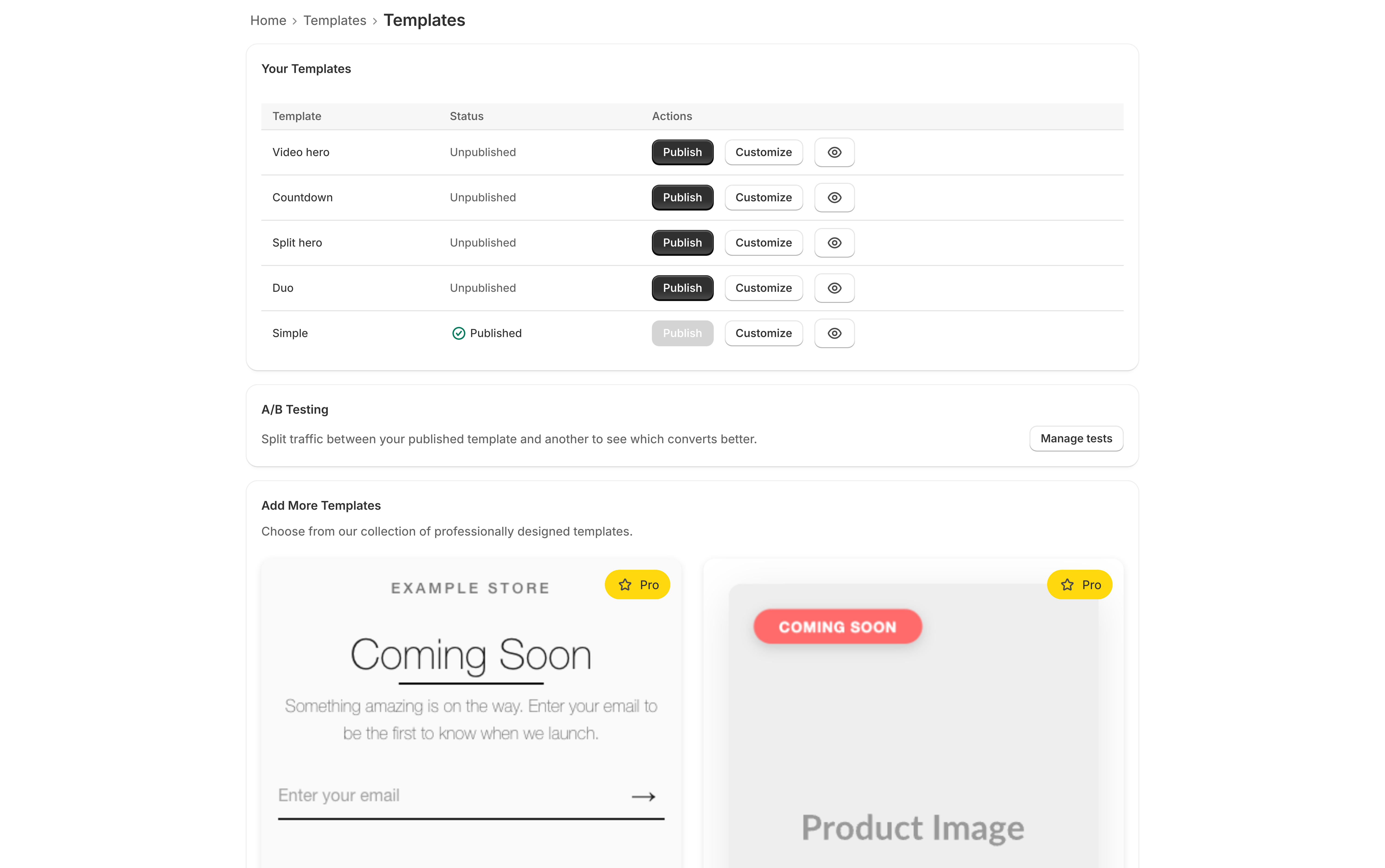
- Your Templates — everything you have added, with Publish, Customize, and a preview button on each. The published one has its Publish button grayed out.
- A/B Testing — Manage tests opens A/B testing (Premium).
- Add More Templates — the gallery of templates you have not added yet.
Adding a template
- Go to Templates and scroll to Add More Templates.
- Click a template to open a larger preview.
- Click Select Template.
It moves up into Your Templates, where you can customize and publish it. Templates you have already added drop out of the gallery, which is why the gallery shrinks as you go.
Pro templates appear in the gallery on every plan, marked with a Pro badge, so you can see what you would get. Selecting one on Basic prompts you to upgrade.
Switching templates
Add the new one, customize it, then Publish it. Publishing automatically unpublishes the previous template — there is no gap where nothing is live.
Your old template stays in Your Templates with its settings intact, so switching back is one click.
Removing a template
Delete a template from Your Templates. You cannot delete the published one — publish something else first.
Deleting discards that template’s settings permanently.
Running two at once
On Premium, you can serve two templates simultaneously and split traffic between them to see which converts better. See A/B testing.